Accepting person can open the purchase request in three ways:
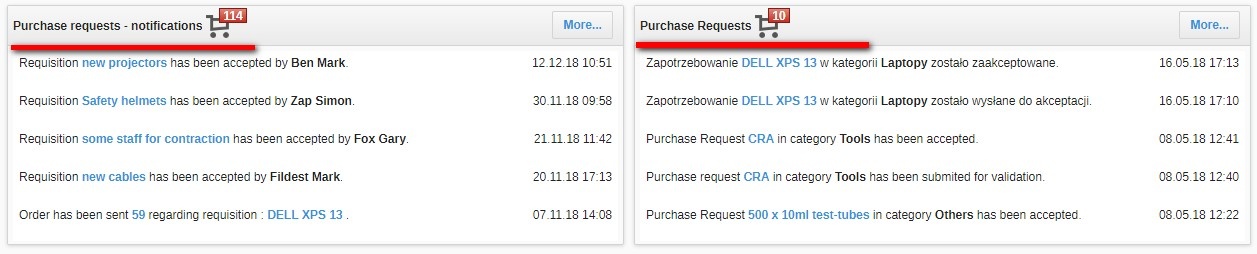
a) on the main page, using purchase request widgets - notifications and purchase request, click on the name of a given purchase request;
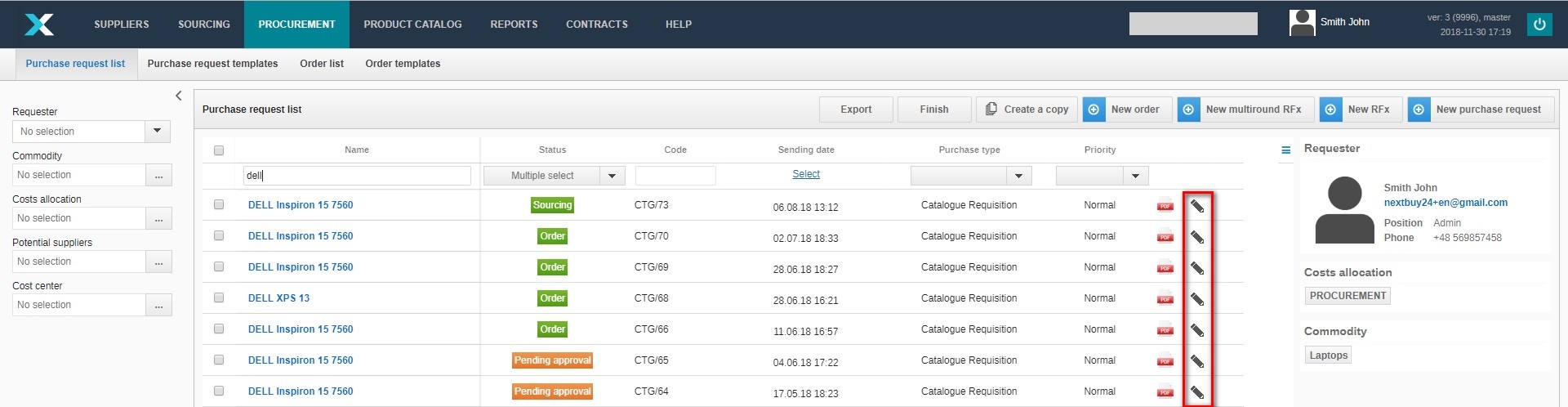
b) in the procurement in the list of purchase requests, click on the pencil icon and edit the purchase request;
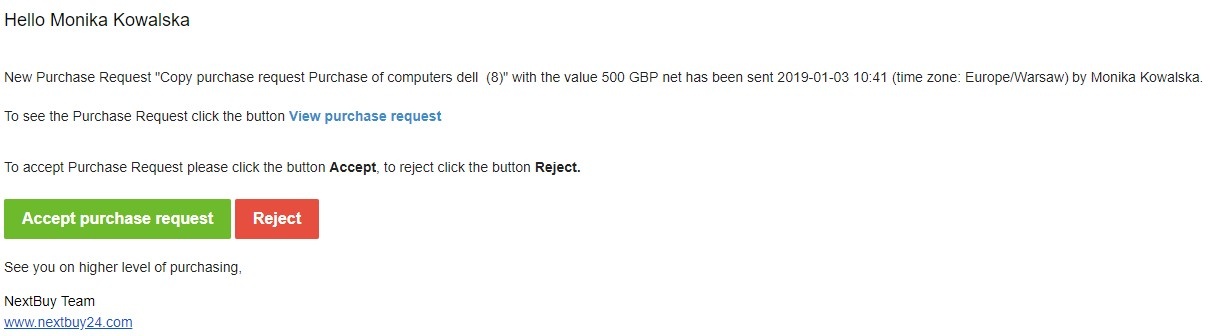
c) in the e-mail message received click on the link see purchase request
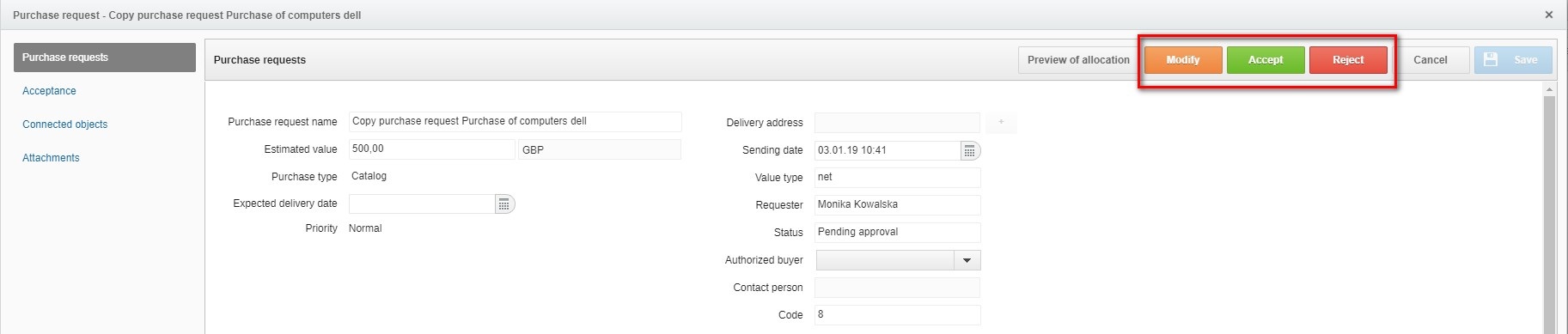
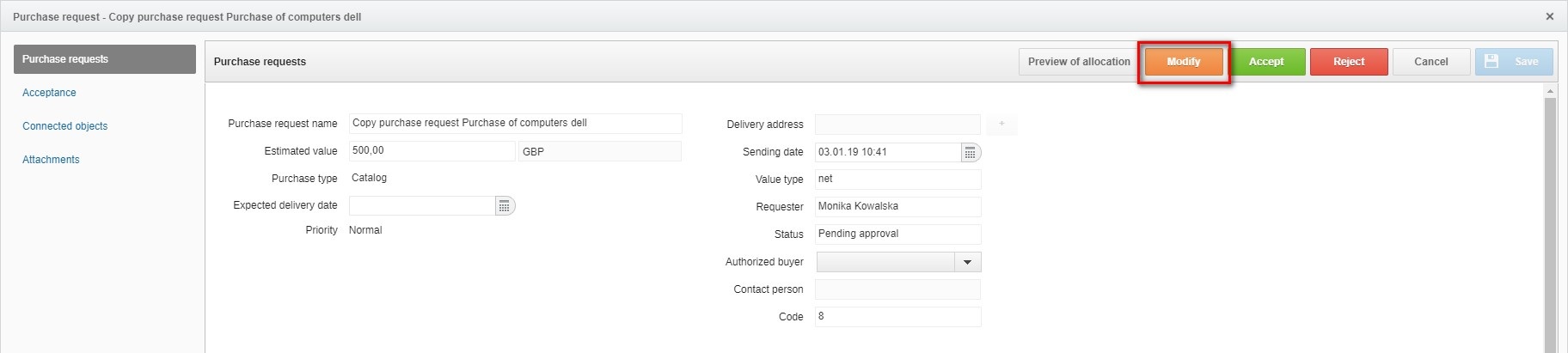
After opening the purchase request, a window with available buttons should appear: modify, accept, reject.
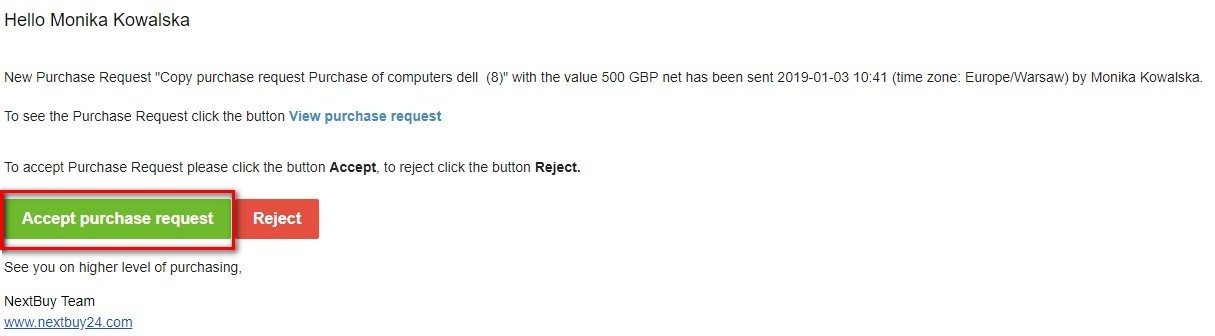
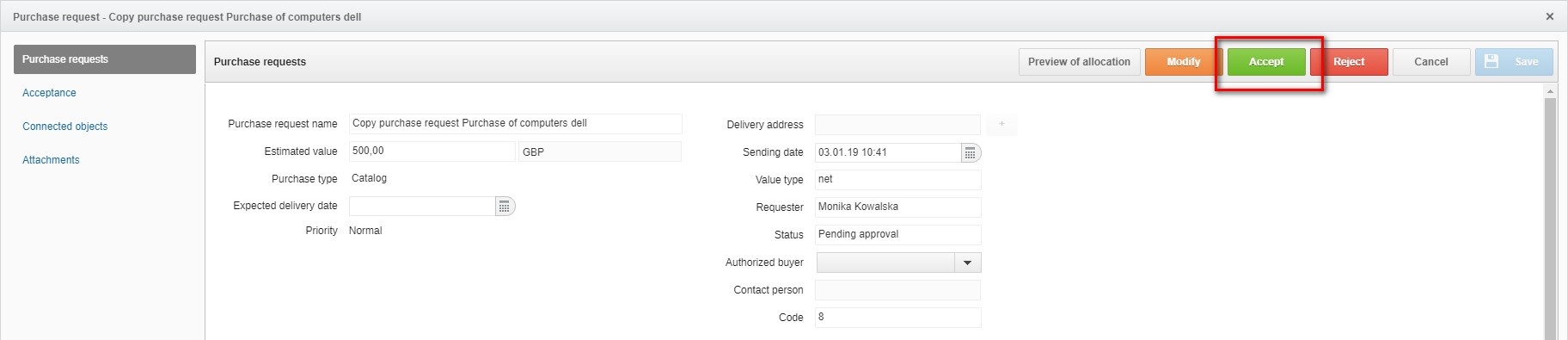
Purchase request can be accepted in three ways:
a) clicking on the green button accept purchase request in the received email;
b) clicking the acceptance tab, and then accept the visible button next to the user;

c) clicking the accept button in open purchase request.
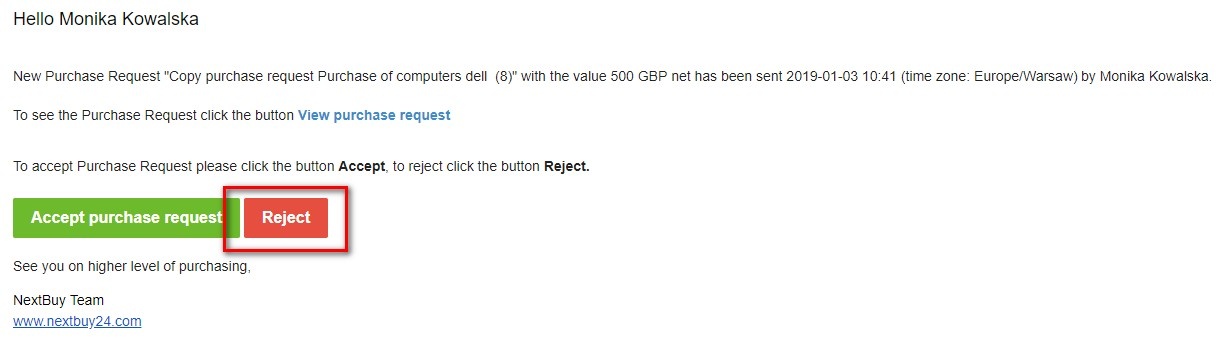
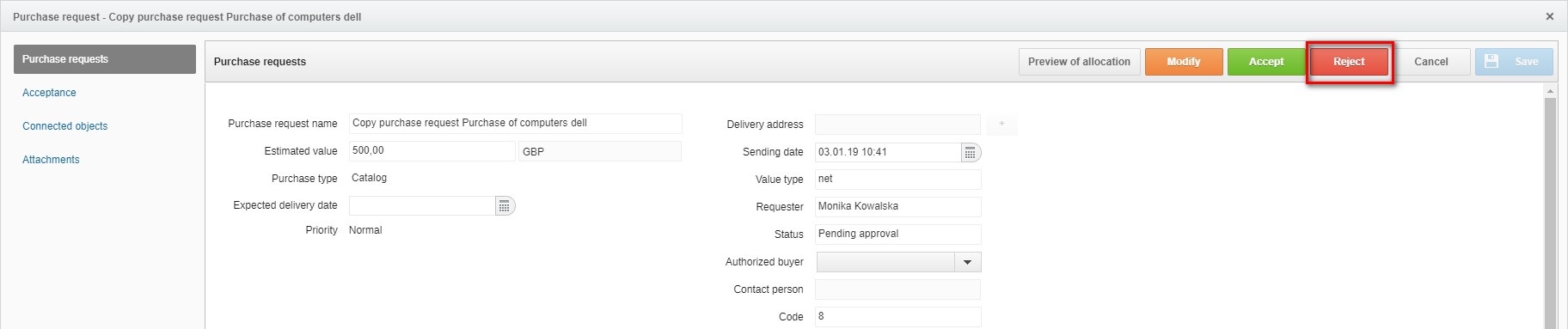
Demand can be rejected in three ways:
a) clicking on the red button reject purchase request in the received email;
b) clicking on the acceptance tab, and then clicking the button visible next to the user;

c) by clicking the reject button in the open purchase request.
In the acceptance tab your choice (accept / reject) the user can justify by entering a comment.

However, if you want to make a modification, click the orange modify button in the tab (the option requires additional permissions).
After clicking the modify button, two buttons will appear: Approve modification and accept and Reject my modification.
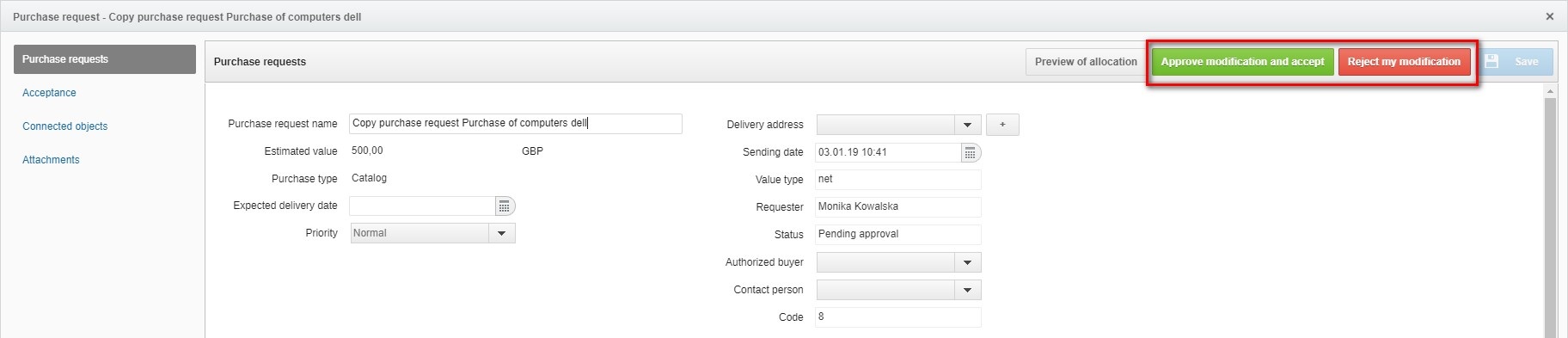
After making changes, the save button will be activated.
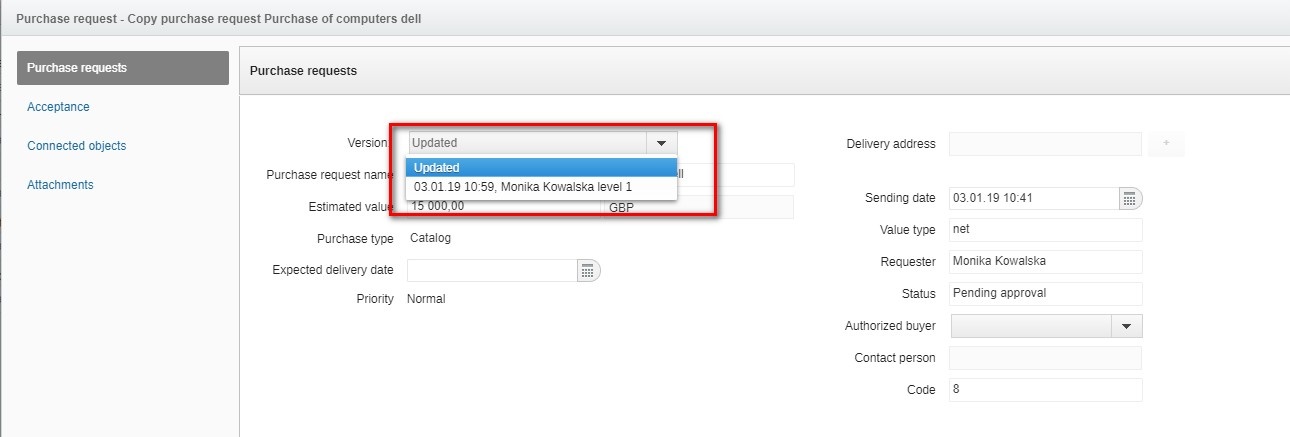
Version z - allows you to check the demand status history before modification at a given level of acceptance by a given user.
Also check: