In the user's profile there is a tab with the name of the replacement. The tab displays a list of all defined substitutions that the user has created, as well as substitutions made by other users to the user.

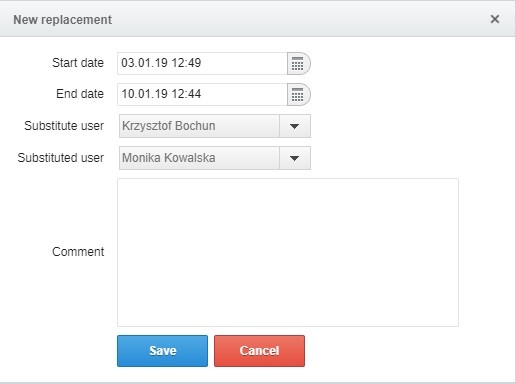
After clicking the add replacement button, the system displays a new window in which you can enter information in the following fields:
- start date - date and time field
- end date - date and time field
- substitute person - a list developed from the company's employees
- replaced person - a list developed from company employees
- comment - text field
As soon as the substitution is started, the deputy will receive a message informing him / her about the user-defined replaced substitution. After clicking the link, the user will be transferred to the system where he will be able to see the details of the defined replacement.
During substitution, the deputy receives all messages generated by the system to the user being replaced. enabling him to perform actions on his behalf.
If it is necessary to perform actions on behalf of the user being replaced, it is possible to perform the operation directly from the e-mail (regarding the acceptance process) or from the application (regarding the process of assigning scales / evaluation of offers / other activities) after logging on to the account of the replaced person.
To log in to the account of the person being replaced, go to the replacement tab.
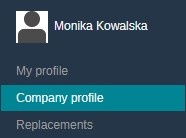
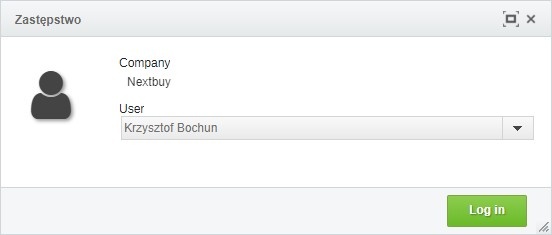
After clicking the replacements button, the system displays a new window in which the option to log into the system as a replaced person appears. In order to log in, click the log in button. After logging in, the replace person has access to the account of the replaced person.
Attention
If you do not have a particular feature, please contact us for more details.
Also check:
