To run the supplier evaluation campaign, click the suppliers tab, and then go to the campaign list tab. In this view, a list of campaigns will be displayed. Two buttons will be available on the upper bar:
Create copy - allowing you to create a copy of an existing campaign.
New campaign - allows you to create a brand new campaign.

After clicking the new campaign button a window will appear in which you should enter the name of the campaign and click the save button after the system will redirect you to the new campaign wizard.
The general settings of the campaign will show the fields to be filled in:
Name - allows you to enter a name. Campaign names must be unique.
Evaluation type - should be selected from previously created grades. The selected type of assessment defines the supplier's assessment method - the evaluation it receives will be consistent with the point range determined for a given result received by the supplier.
Questionnaire - one of the previously created questionnaires should be selected. After selecting the type of assessment, the questionnaires will be filtered to those that are subject to the type of assessment.
Description - allows you to describe a given campaign.
Owner - allows you to assign a person responsible for a given campaign. The responsible person manages the campaign - all notifications about the current state of the campaign are sent to it. Has a preview of all user ratings and can manage the end time of the campaign.
Status - it automatically sets up in preparation, after sending the campaign for evaluation, the status changes to sent. When the time to complete the ratings has passed, the status changes to be completed.
Start date - allows you to set the start date of the assessment.
End date - allows you to set the end date of the review. The evaluation of individual suppliers in their profiles will be displayed only after the campaign is completed.
Questionnaire settings - select from previously created settings.
End date notification - allows you to choose how many days before the end of the campaign you will be sent a reminder about the end of the campaign to the assessors.
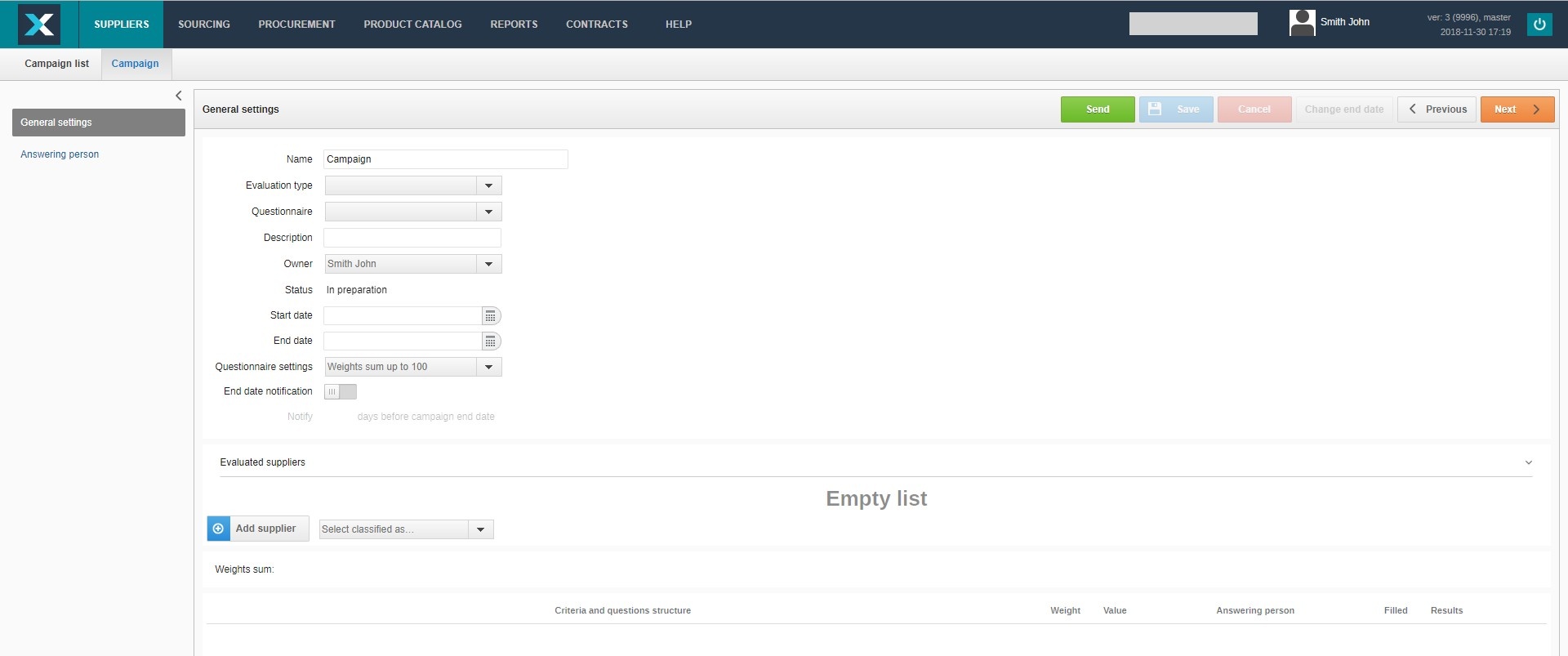
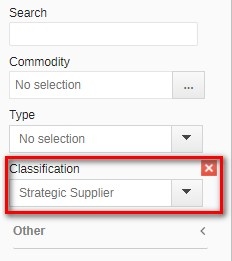
Below are the rated suppliers, click the add supplier to add the companies you want to evaluate. It is also possible to add automatic filtering of suppliers by indicating the appropriate classification to which the given suppliers have been previously attached.

After clicking add supplier, only vendors selected by a given classification will appear on the list.
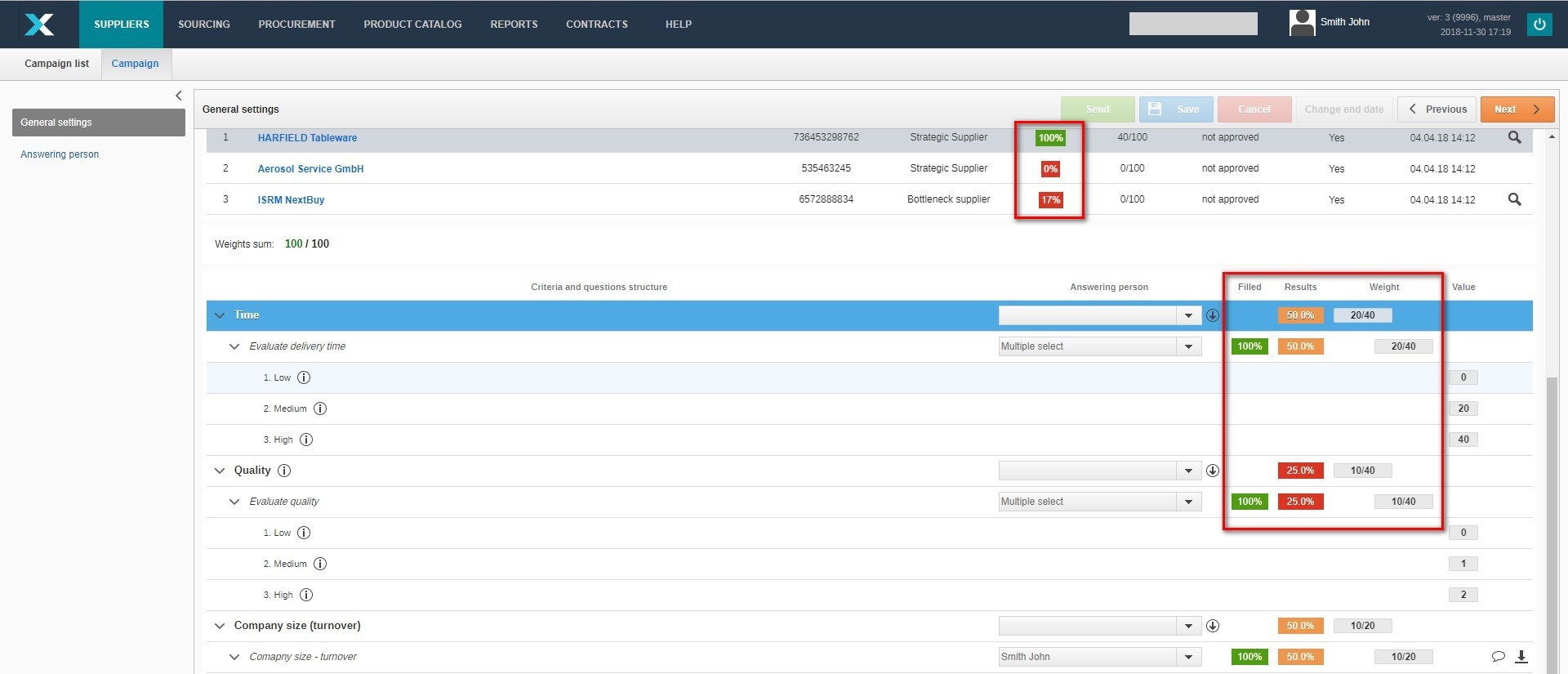
After selecting the suppliers one should assign the evaluator (it is possible to choose a lot of people), which will evaluate the supplier in the question indicated. After indicating the person for the criterion, it is possible to automatically transfer the selection to all questions in the given criterion by clicking the down arrow symbol.

After completing the entire campaign, click Save, and then send for the campaign to be sent to the assessors. After sending the campaign, it will not be possible to change the type of the assessment, questionnaire or assessors.

During the campaign, it is possible to add new suppliers. To do this, select new suppliers, add them to a given campaign and then click the send button for each of them.

During the campaign, the responsible person has a preview to:
Progress - indicates the extent to which the rating was given, 0% - in the absence of any assessment; 100% - when all evaluators submitted their assessment.
Points / Score - will be calculated as an average of all grades, after all grades have been sent from the evaluators.
The data in the supplier's evaluation field will be supplemented depending on the degree of assessment of a given supplier by users assigned to the given assessment.
To enter the details of the assessment, click on the given provider. The data will be replenished automatically. The level of filling a given question will be visible with each supplier. Depending on the number of assessors, 100% will appear only when everyone makes their assessment. The result will show the average rating obtained by the given supplier in a given criterion / question. The scale will show the average value of the points obtained.
In the Answering person tab (after sending the campaign), a list of grades for all suppliers and assessors will be displayed. The system allows you to filter data, among others, after a person evaluating a given company, company name, progress of the evaluation or evaluation was sent and the last modifying together with the date of modification.

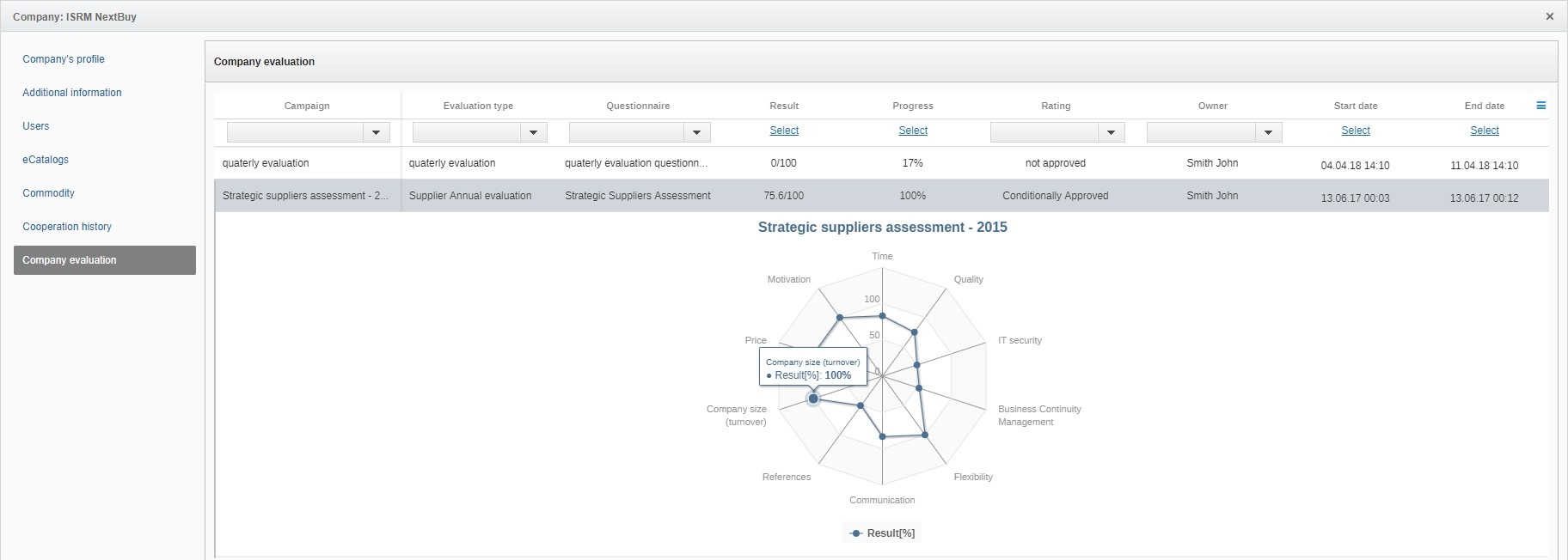
Rating will be visible after entering the supplier's profile in the company evaluation . After clicking on the name of the campaign, a graph showing the results will appear. The type of assessment, questionnaire, result, progress, evaluation and responsible person will also be visible.
Also check: