To manage the supplier rating criteria, in the Suppliers module go to Configure evaluation.
On the left, there is a menu where you can go to sections such as:
- Classification type;
- Evaluation type;
Criteria and questions structure;
Questionnaire list.
Classification type
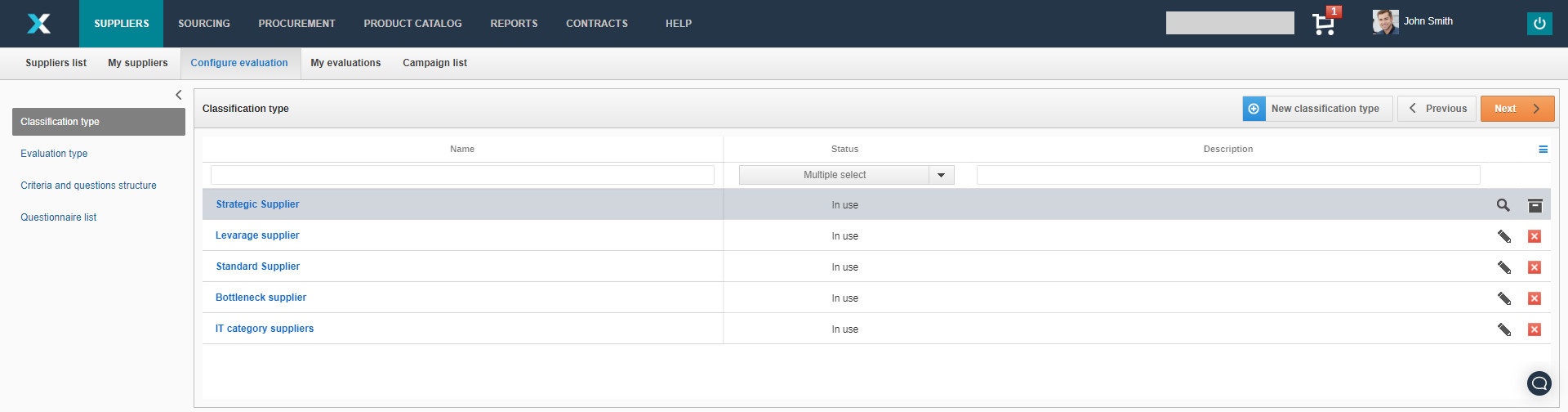
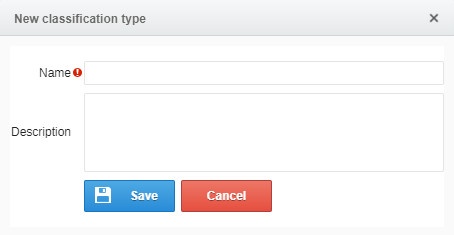
To add a new position, click the New Classification Type button.
Enter a name and optionally Description.
If the classification type has the status In edition you can edit it  or delete
  . However, when a given type has already been used, this possibility disappears.
After clicking on the loupe icon  , you can enter details or archive a given item using the box icon
  .
.
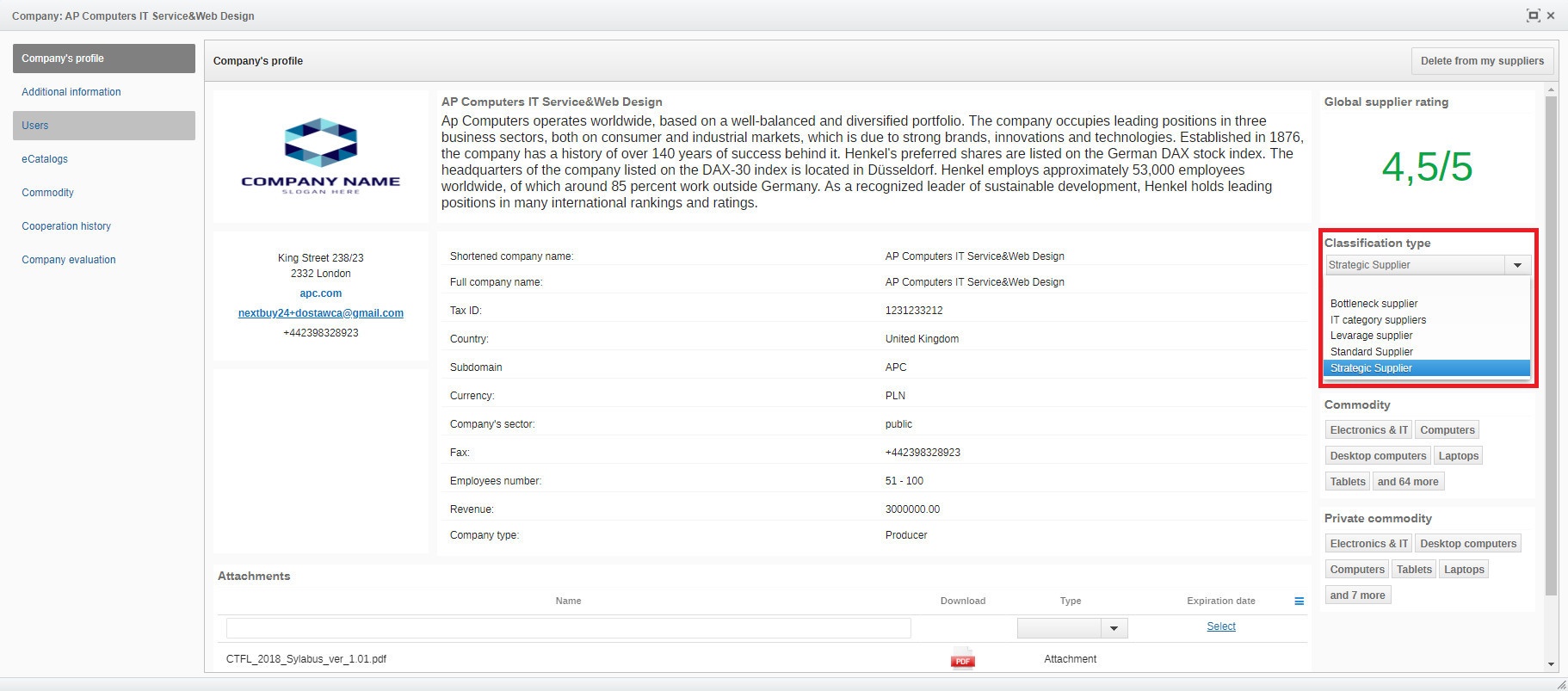
You can use classification types by marking suppliers after adding them to your suppliers. Then, when you enter a company profile, you will see the classification options on the right side:
Evaluation type
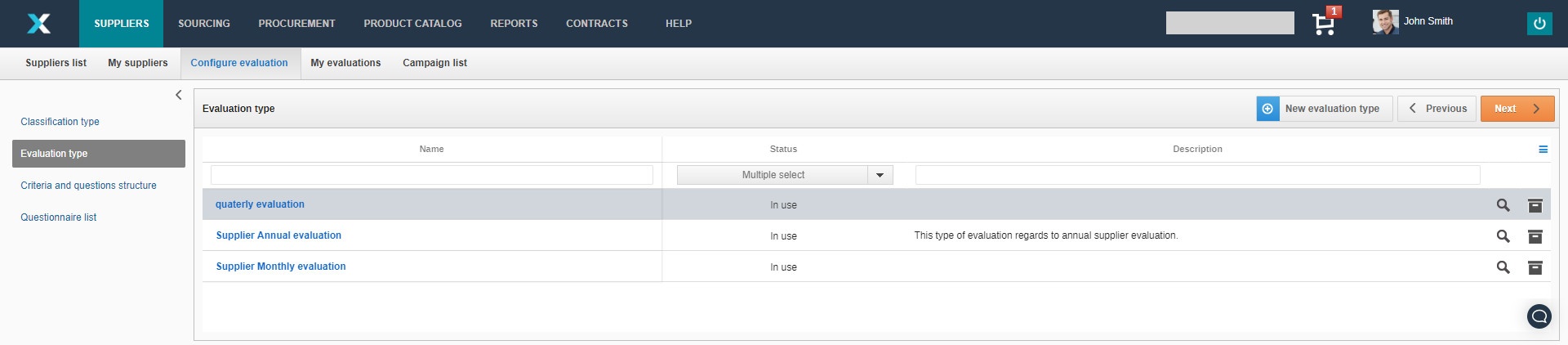
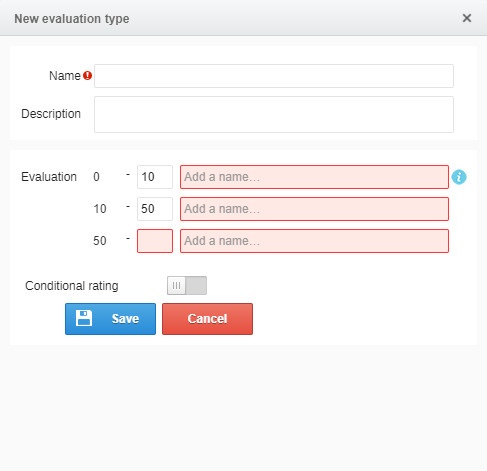
To add a new item, click on the New Evaluation Type button.
Enter a name and optionally Description.
Then set the scope of the evaluations and enter a name for it. You can add multiple grade ranges and grade names.
If you will select Conditional Rating then the evaluation you select will be conditional on the relevant answer in the blocking question when the assessor completes the questionnaire.
The supplier will receive a conditional grade, regardless of the total score.
If the evaluation type has the status In edition you can edit it or delete . However, when a given type has already been used, this possibility disappears.
After clicking on the loupe icon , you can enter details or archive a given item using the box icon .
Tip
You will use the assessment types when creating a new questionnaire, which you will find a description of later.
Criteria and questions structure
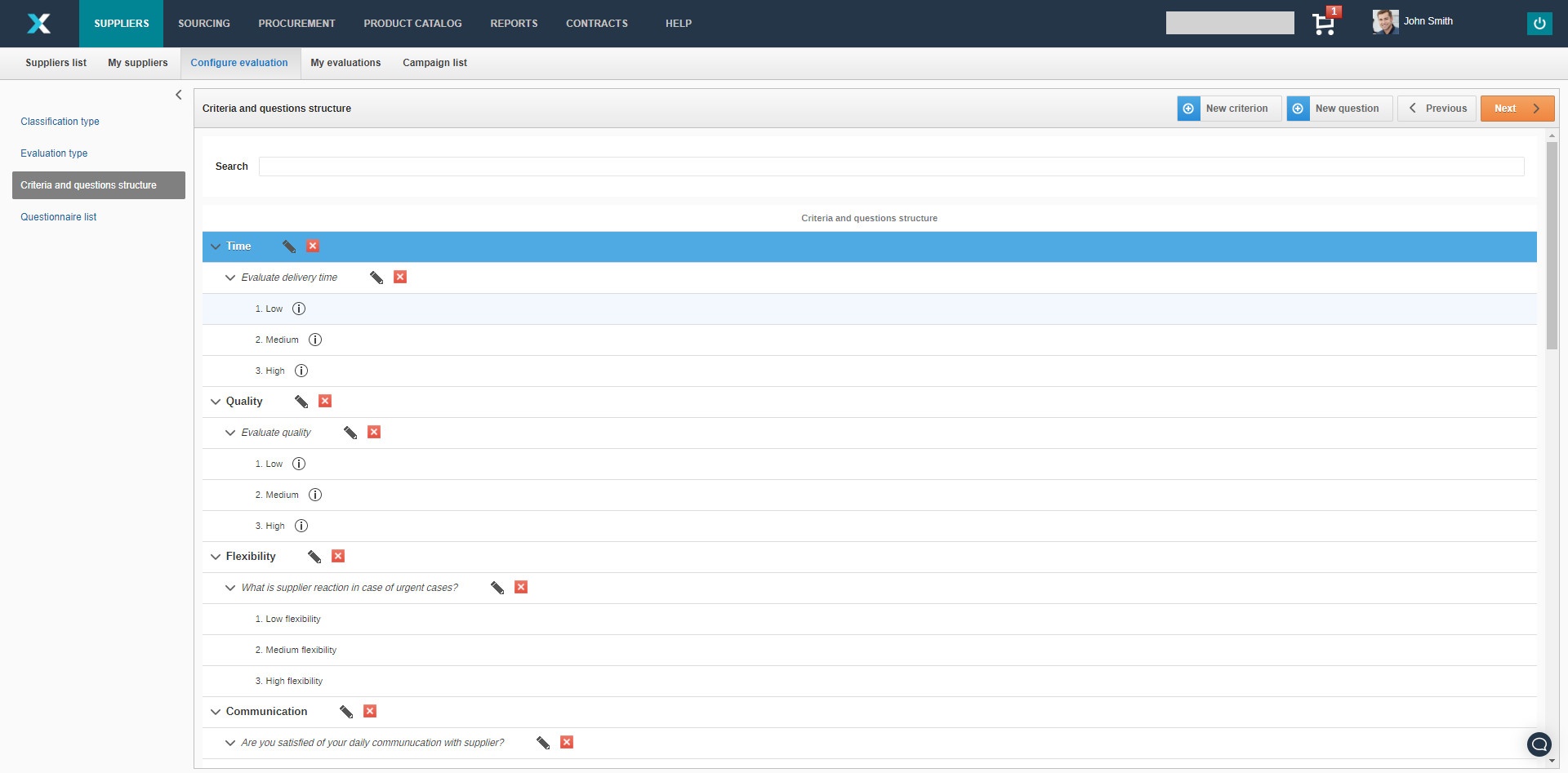
The criterion takes precedence over the question.
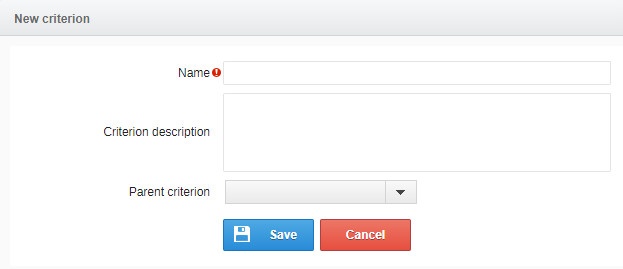
Clicking on the New Criterion button will show a window.
Fill in the Name field. Optionally, you can add a description of the criterion and indicate the Parental Criterion.
By clicking on the New question button, a window will appear.
Complete the Name field and optionally add a question description.
Indicate to which criterion it will be assigned.
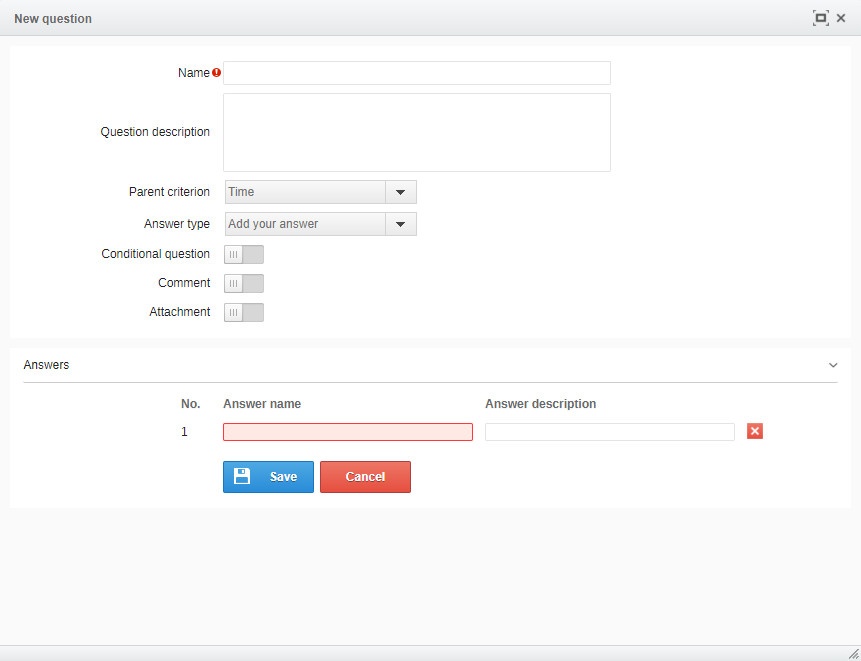
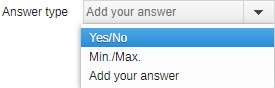
In the field Answer type, you can use the two options already prepared:
- Yes/No;
- Min./Max.
The last option allows you to add your own answers.
In addition, there are options such as:
- Blocking question - If you select this option, the chosen answer option will result in a conditional evaluation by the provider. This means that if the assessor chooses a given answer option, the supplier will obtain a conditional rating, regardless of the sum of the points obtained;
- Comment - this will allow you to add an additional comment to your answer;
- Attachement - will allow an additional attachement to be added during the answer.
Criterias and questions you can:
- Search using the Search field, which is visible above the entire structure;
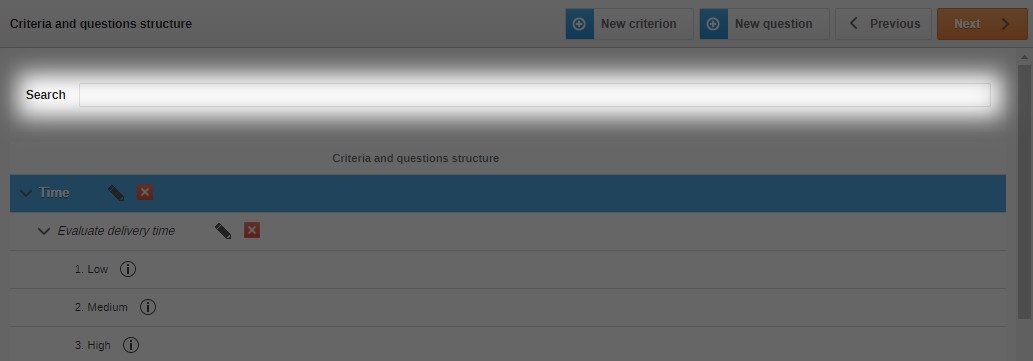
- Manage the criteria and questions view using the buttons
 and
and  to hide or uncover individual items;
 - Edit or delete individual criteria or questions.
Questionnaire list
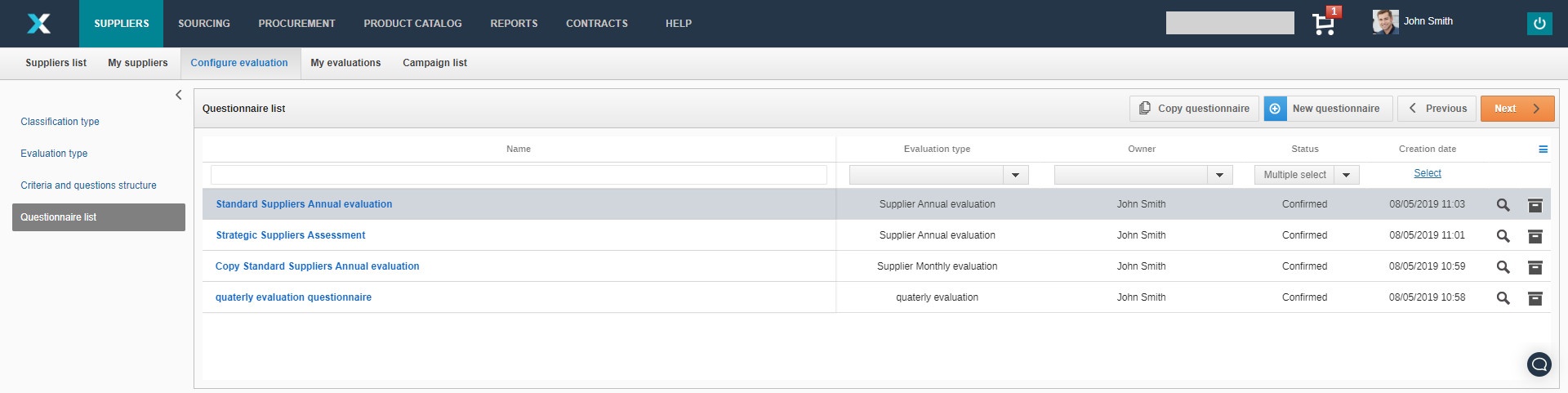
You can create a questionnaire in two ways:
After selecting an existing questionnaire, click the Create Copy button;
Click on the New Questionnaire button.
Using the first option, you will copy all the settings, criteria and questions of the previously selected questionnaire, but you still have the option to edit it until approved.
If you choose the second option, you can build your questionnaire from scratch.
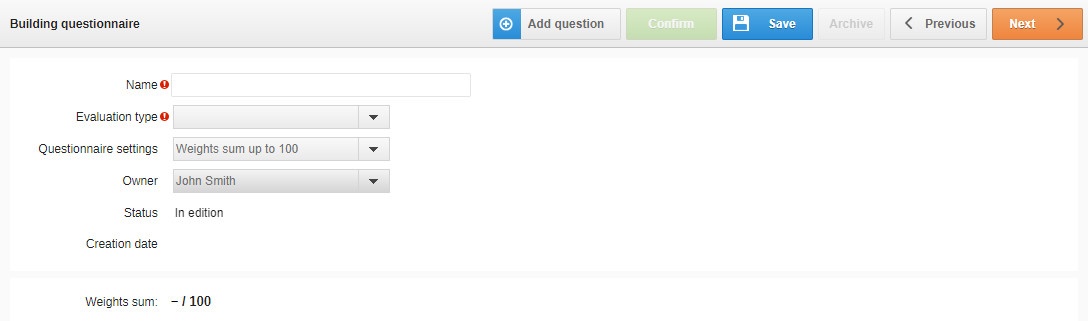
Enter a Name and select the Type of rating from the drop-down list.
There are two options available in the questionnaire settings:
The weights add up to 100 - the option selected by default;
User-defined - the user individually decides on the weights in a given questionnaire.

Then select the person in charge.
By clicking on the Add question button, a window will appear with the questions assigned to each criterion.
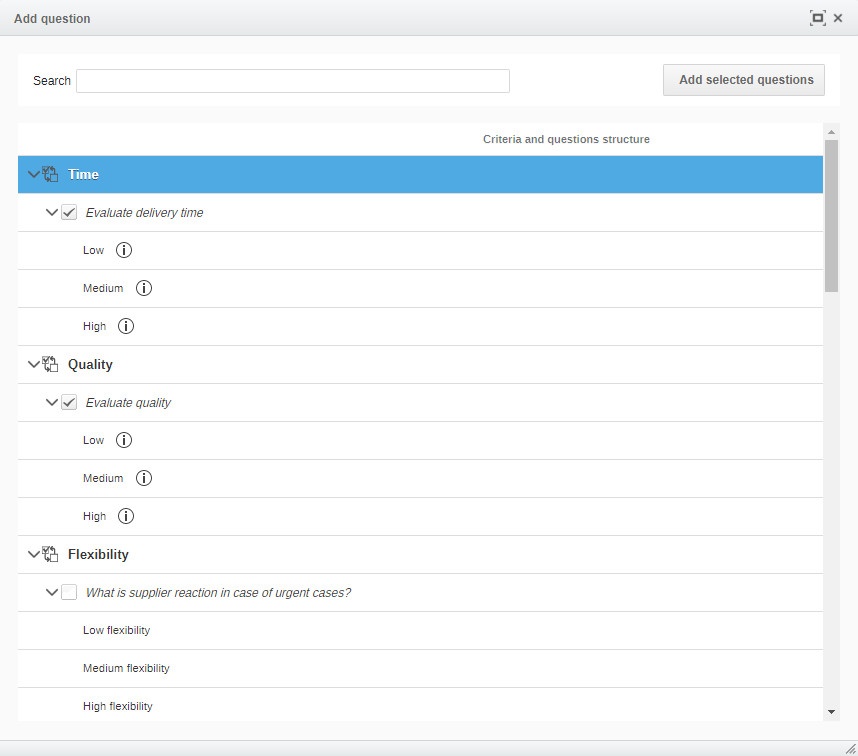
You can either select a question individually, through the checkbox, or select all the questions in a given criterion using the button  .
.
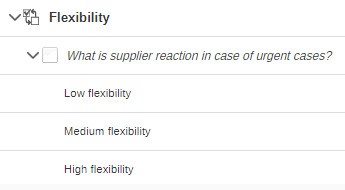
After selecting the appropriate questions, click on the  .
.
After adding the questions to the questionnaire, determine the weight of each question and the value of each answer.
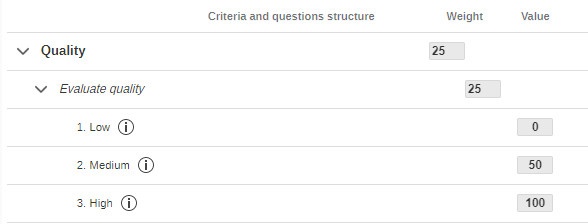
Then Save the current status of the questionnaire.
If you have finished building the questionnaire, click on the Confirm button.
Once approved, the form can be used to create a new supplier evaluation campaign. However, it can no longer be edited.
Attention
If you do not have a particular feature, please contact us for details.
Also check: