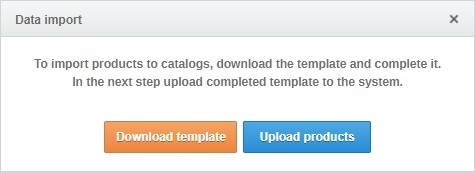
Catalog products can be added in two ways:
a) import - to import products into catalogs, you must download the template. Then you have to fill it with products to be uploaded to the catalog and then import this file by clicking the Upload products button.
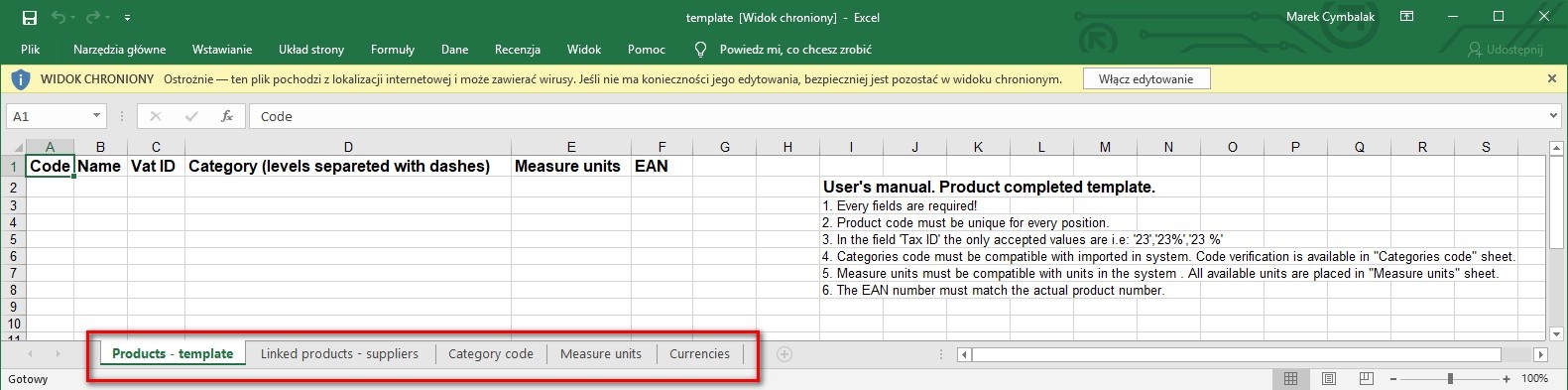
Instructions for completing the product template (also found in the catalog template):
- All cells must be filled
- The product code must be unique for each item
- In the field VAT rate the value is assumed in the format eg "23", "23%", "23%"
- Purchase category codes must be compatible with those implemented in the system. The verification of codes is possible in the sheet called "category codes". Please use the appropriate categories based on those given in the template.
- The units of measure must be compatible with the units in the system. All available units can be found in the "Measure units" sheet.
- The EAN number must match the actual product number. EAN - numeric field (at least 13 characters)
b) New product - in order to add a new product, it is necessary to complete the Index and Name field as well as to specify the appropriate commodity. Purchase category can be defined at lowest level of nesting. After completing this data, click a Save button.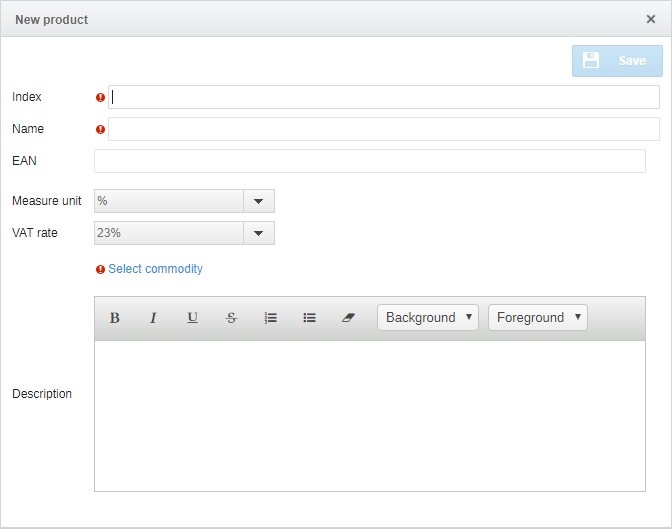
It is also possible to add a supplier offer in a previously created product. To do this, click on the icon  and then click on the Add new offer from supplier.
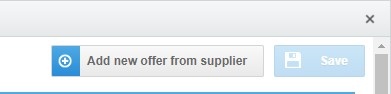
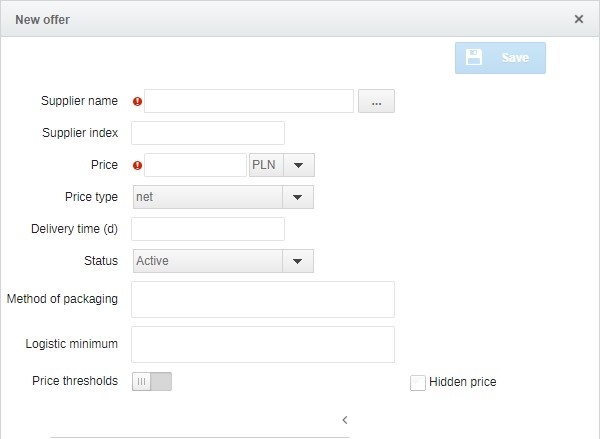
After clicking the Add new offer from supplier button, a window appears in which you can add a new offer. To save, you must fill in the supplier name and price fields. To select a supplier, click the icon  .
.
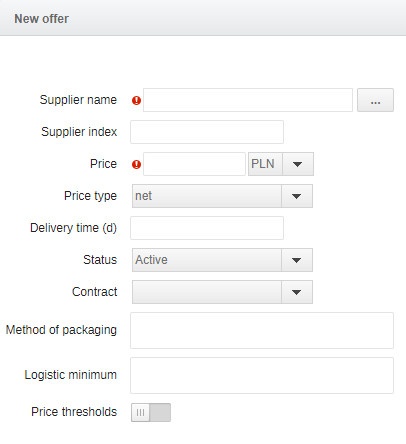
Additional fields are:
- Supplier index;
- Price type;
- Delivery time;
- Status;
- Contract;
Method of packaging;
- Logistic minimum;
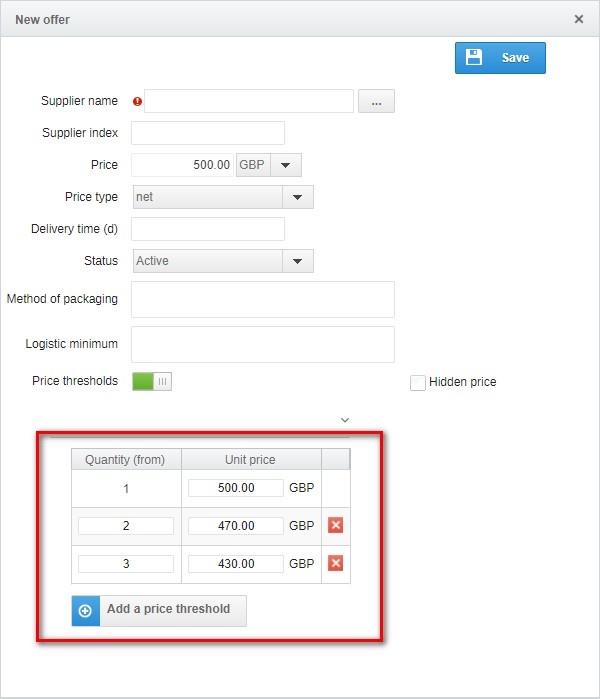
- Price thresholds.
By defining a new product in the catalog, the system allows defining price ranges for a given quantity (manual configuration and import from a file). The currency and delivery time is the common value for each range. Compartments can be created without any limit on the number of compartments. The last interval always has the value of infinity. The system allows you to enter only one offer for a given supplier.
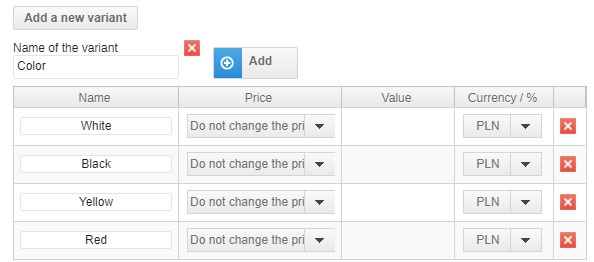
At the very bottom of the edit window, Add a new variant button is visible. After clicking on this button, you should enter the name of the variant and after clicking on Add, we will add a new row to the table. In it you should enter the name of the option, in the Price column, determine if the price does not change, will decrease or increase and enter a possible value of the change. The value of the change can be given in the currency added to the product or in percentages.
The picture below shows an example of a catalogue product variant.
Attention
If you do not have a particular feature, please contact us for details.